









xTool X1 CMYK Inkjet Printing Module Attachment
$242.00$269.99
$242.00
Add-ons


xTool X1 CMYK Inkjet Printing Module: Full-Color Printing for the xTool X1 Laser
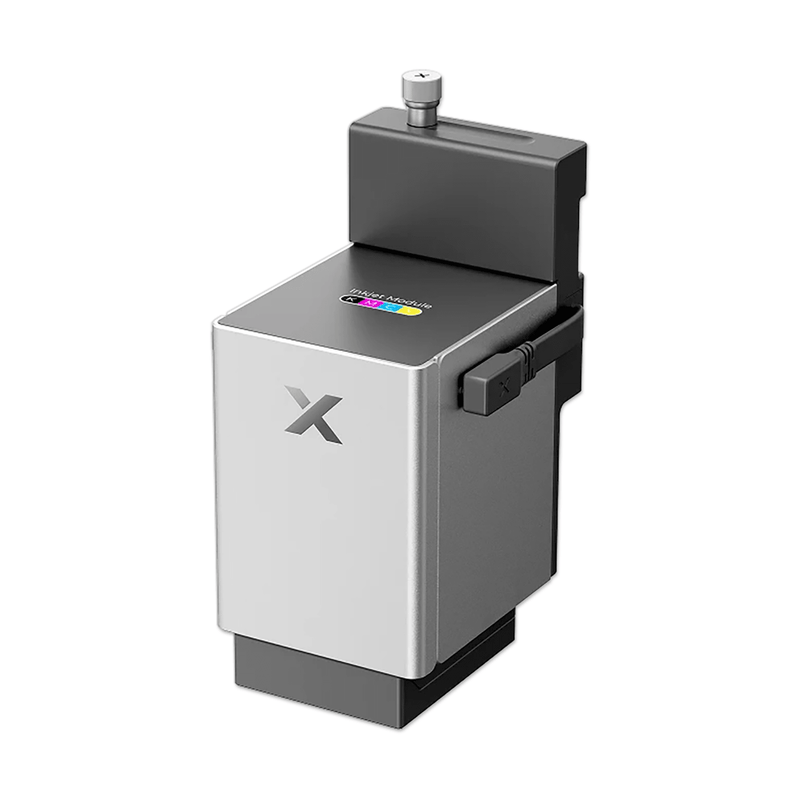
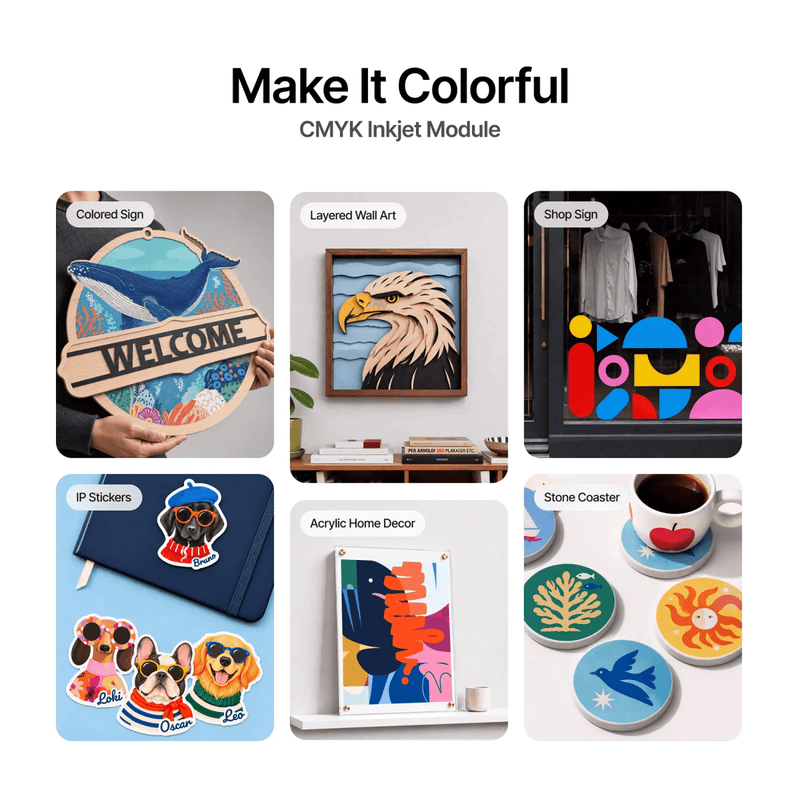
The xTool X1 CMYK Inkjet Printing Module brings full-color printing to your xTool X1, so you can print vibrant artwork and then laser cut or engrave it on the same machine. It's built for makers and small businesses who want to offer colorful signs, stickers, labels, gifts, and home décor without hand painting. You get it from Swing Design, xTool's largest dealer, with expert support behind every order.
Key Features
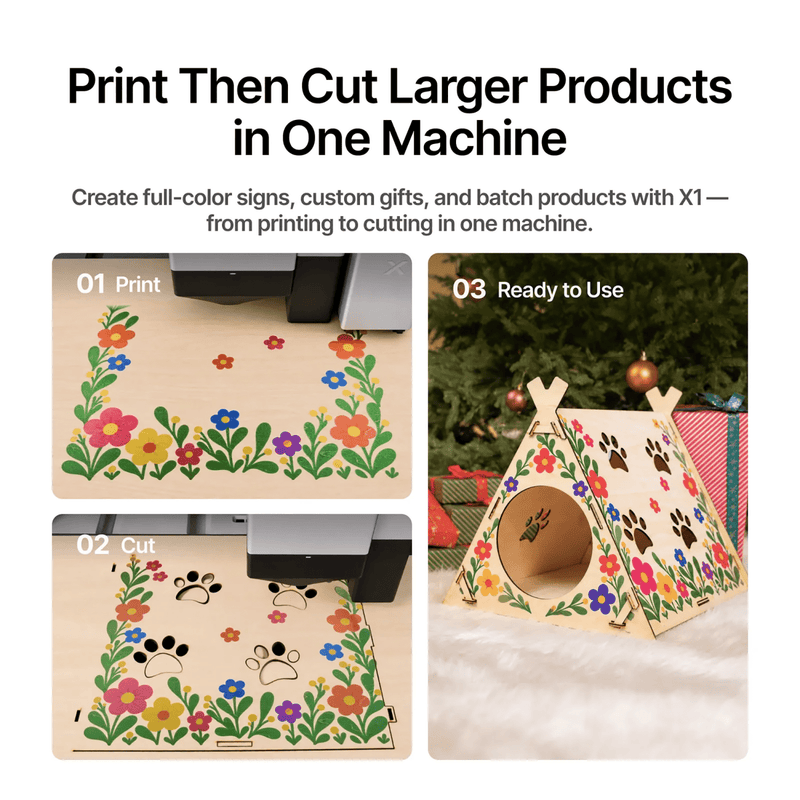
- Print Then Cut in One Machine: The CMYK module turns the X1 into a print-and-cut workstation. You can print full-color designs and then cut or engrave them with the X1's laser, so stickers, labels, signs, and layered wall art go from design to finished product without moving to another machine.
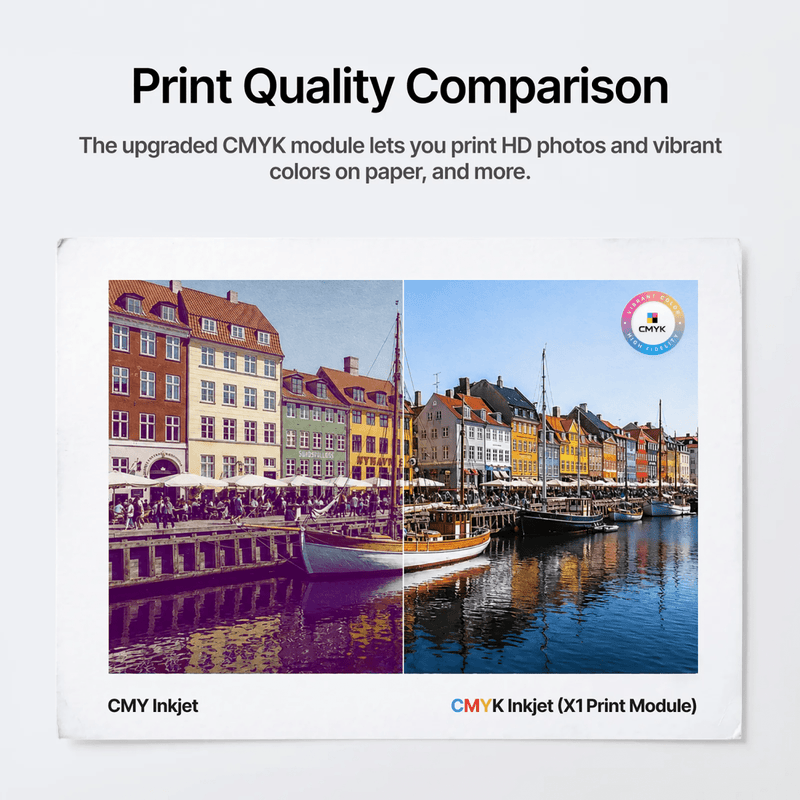
- Upgraded Four-Color CMYK Printing: This module uses Cyan, Magenta, Yellow, and Black ink instead of the older three-color CMY setup. Adding true black gives you richer colors, deeper shadows, and HD photo prints that stand out on finished products.
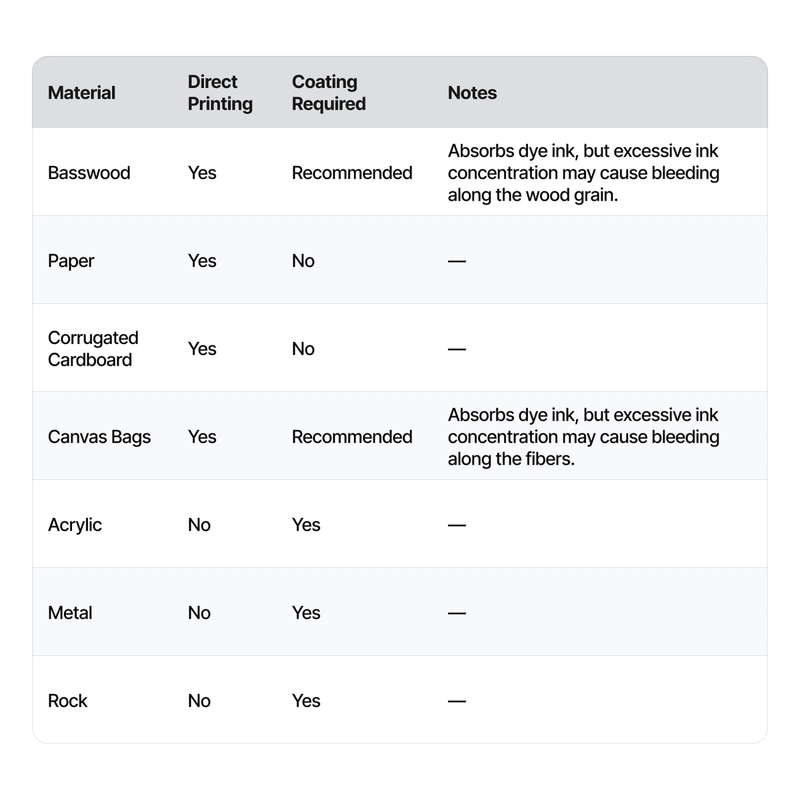
- Prints on a Wide Range of Materials: It prints directly on paper, cardstock, corrugated cardboard, basswood, and canvas bags. With the right primer, you can also print on acrylic, metal, stone, glass, and ceramic, which opens up more products to sell.
- Simple Setup With xTool Studio: The module mounts to the X1 with the included mounting plate and connects through the machine, so it doesn't need its own cable to your computer. In xTool Studio, you set the object to the four-color inkjet head, frame it, and print, with guided calibration the first time you use it.
- Built for Batch and Commercial Work: Paired with the X1's large work area, the CMYK module is suited to bigger products, batch production, and repeat orders. It's an easy way to add color to the projects you already make and grow your product line.
What's Included
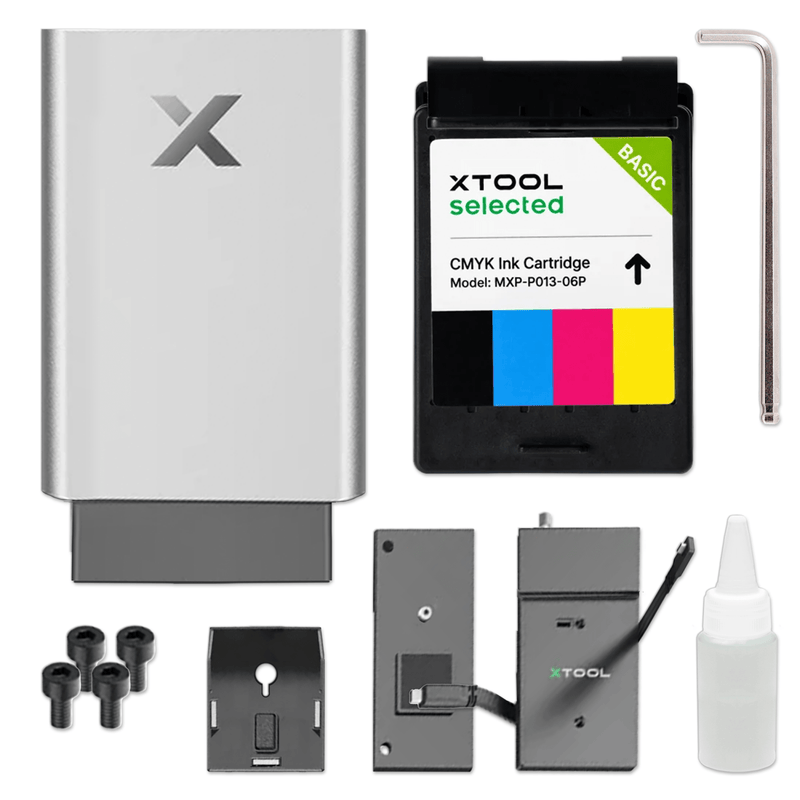
- xTool X1 CMYK Inkjet Module
- Ink Cartridge
- Bottom Cap
- Moisturizing Liquid
- Module Mounting Plate
- Placing Board For Inkjet Test
- Hex Key
- Screw
- Inkjet Test Pad (With Holder)
- Inkjet Test Pad (Spare)
- Calibration Card
- Placing Plate For Flexible Materials
- Magnetic Patch
- Masking Tape
- User Manual
Specifications
| Specification | Details |
|---|---|
| Product Name | xTool X1 Inkjet Printing Module, CMYK |
| Compatible Machine | xTool X1 only |
| Print Technology | CMYK inkjet (four-color inkjet head) |
| Ink Type | Water-based dye ink |
| White Ink | Not supported |
| Ink Cartridge | Genuine 40 ml CMYK cartridge, up to 400 pages (shared with M2, X1, and P3 inkjet modules) |
| Software | xTool Studio |
| Connection | Mounts to the X1 with the included module mounting plate |
| Operating Temperature | 15–35°C (59–95°F) |
| Operating Humidity | 40–60% RH |
| Warranty | 12 months |
Supported Materials
| Material | Direct Printing | Primer or Coating |
|---|---|---|
| Paper and Cardstock | Yes | Not needed |
| Corrugated Cardboard | Yes | Not needed |
| Basswood and Wood Boards | Yes | Recommended |
| Canvas Bags and Fabric | Yes | Recommended |
| Acrylic | No | Required |
| Metal | No | Required |
| Stone and Rock | No | Required |
| Glass and Ceramic | No | Required |
For the best color, print on white or light-colored materials. CMYK inkjet doesn't lay down a white base layer, so dark or black materials aren't a good fit for color printing.
How to Get Started
- Remove the dust plug on the X1's CO₂ laser module, attach the module mounting plate, and seat the inkjet module.
- Install the ink cartridge with the machine powered off, sliding it in until it clicks.
- Install the slats, or raise your workpiece so the printing surface sits level with the slat working plane, so the X1 can detect the material.
- Run the inkjet module position calibration in xTool Studio the first time you use it.
- Pick your material, import your artwork, set it to the four-color inkjet head, frame it, and print.
Who It's For
- Small businesses selling custom signs, stickers, labels, and packaging
- Etsy and craft sellers who want more colorful products and more SKUs
- Gift shops making personalized wood, acrylic, and fabric gifts
- Event and décor makers producing signage and wall art in batches
- xTool X1 owners who want to add color to the projects they already make
Frequently Asked Questions
Which machines is the xTool CMYK Inkjet Printing Module compatible with?
This module works only with the xTool X1. The M2 and P3 each use their own inkjet module, but all three use the same CMYK ink cartridge.
What kind of ink does the X1 CMYK module use?
It uses water-based dye ink in Cyan, Magenta, Yellow, and Black. It's not UV ink, and there's no white ink.
Can I print and then cut on the same machine?
Yes. The module lets the X1 print full-color designs and then laser cut or engrave them, which is ideal for stickers, labels, signs, and layered décor.
Which materials can I print on directly?
You can print directly on paper, cardstock, corrugated cardboard, basswood, and canvas bags. Acrylic, metal, stone, glass, and ceramic need a primer first.
Why do colors look lighter on some materials?
Since CMYK inkjet has no white base layer, colors look best on white or light materials. Absorbent surfaces like felt, untreated wood, and coarse burlap can also make colors look lighter or less vibrant.
Are the prints waterproof or washable?
No. The water-based ink can smudge or bleed if it gets wet, so washing printed items isn't recommended. A clear matte sealer spray, sold separately, can help protect finished pieces.
Do I need the slats to print?
Yes, install the slats, or raise your workpiece so the printing surface is level with the slat working plane. Without that setup, the X1 can't detect the material. Don't place honeycomb panels on the workplate while using the inkjet module, since the module can hit them.
What software do I use?
The module runs in xTool Studio, where you calibrate it, set up your artwork, and send the print job.
How long does an ink cartridge last?
Each genuine 40 ml CMYK cartridge prints up to 400 pages. One cartridge is included, and replacements are sold separately.
How do I keep the print head in good shape?
Recap the module after printing and keep the bottom-cap sponge slightly damp with the included moisturizing liquid or distilled water. Don't leave the nozzle exposed to air for long, and replace the inkjet test pad when it gets dirty.
Why buy the xTool X1 CMYK Inkjet Printing Module from Swing Design?
Swing Design is xTool's largest dealer, so you get genuine xTool products, fast shipping, and knowledgeable support to help you set up and get the most out of your X1.
Where can I buy the xTool X1 CMYK Inkjet Printing Module?
You can order it from Swing Design at www.swingdesign.com.
Order the xTool X1 CMYK Inkjet Printing Module Today
Add vibrant full-color printing to your xTool X1 and turn every project into a print-and-cut product that sells. Order the xTool X1 CMYK Inkjet Printing Module from Swing Design, xTool's largest dealer, today.